Installation guide
Add AI chat to your website
This guide is for merchants who can edit their website or add a script through its publishing tools. Finish with a working conversation and a checked answer, not just a visible chat button.
Ouviro · Published
1. Prepare your website and account
Have access to your site's shared layout or custom-code settings, your registration email, and one current support policy to test. Register at app.ouviro.com, confirm your email, then complete store setup.
Use an owner or admin account for channel and knowledge configuration. Keep a human support route available for questions your content cannot answer.
2. Configure your website channel
Open Channels and use the website channel created during setup, or create one for the site you are installing on. Check its website URL, display name, language, and appearance, then copy that channel's installation code.
The websiteToken identifies the channel and appears in your page source. It is not a private API credential or permission to read customer orders.
3. Load the SDK and start the widget
Add the code once to the shared page layout. If you use window.aiSupportSettings for optional settings, define it before loading the script. The SDK loads asynchronously; call window.aiSupportSDK.run only after it has loaded.
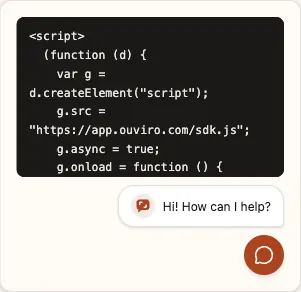
This is an illustrative installation with a sample channel token. Replace it with the code from your own channel, then publish the website change.
<script>
  (function (d) {
    var g = d.createElement("script");
    g.src = "https://app.ouviro.com/sdk.js";
    g.async = true;
    g.onload = function () {
      window.aiSupportSDK.run({
        websiteToken: "YOUR_WEBSITE_TOKEN",
        baseUrl: "https://app.ouviro.com"
      });
    };
    d.head.appendChild(g);
  })(document);
</script>
4. Allow the required connections in CSP
If your site uses Content Security Policy, merge these source permissions into its existing policy. Permit the entire script origin because the chat panel loads a separate script. The inline bootstrap also needs your site's existing nonce or hash approval; these source permissions alone do not authorize inline code. If your policy also defines script-src-elem, apply the bootstrap's nonce or hash approval and the https://app.ouviro.com script-origin permission there too; changing script-src alone does not override it.
The current widget inserts inline styles into its shadow DOM. The style permission below is also required; a nonce or hash on the bootstrap does not authorize those styles. Preserve your other policy sources. If your security policy cannot allow these inline styles, including a nonce-only style policy, this widget is not compatible with it yet. Review that constraint before installing.
Only add the inline-style permission if you have reviewed and allow it. An existing style-src-elem directive or style nonce/hash restrictions can still block the widget; copying these three lines does not override them.
script-src https://app.ouviro.com;
connect-src https://app.ouviro.com wss://app.ouviro.com;
style-src 'unsafe-inline';
5. Open the window and check connectivity
Reload the published page and open the chat button. In browser developer tools, check that sdk.js and the chat script load, /widget/ requests succeed, and the connection to wss://app.ouviro.com/ws/ opens.
Seeing the button alone does not prove the conversation can connect. Check on a narrow mobile viewport too.
6. Verify the first useful answer
Add a short, current policy in Knowledge and wait for its indexing and publication to finish. Ask a question with an answer you can verify against that policy. Confirm the reply and conversation appear in the agent inbox.
Also ask an unsupported question and try the human support control. Check the actual handoff behavior and agent availability before inviting customers.
7. Fix loading failures and repeated installs
If the launcher shows Try again, inspect blocked script requests, CSP errors, and network failures, then retry. If the panel opens but cannot connect, inspect HTTP and WebSocket requests separately.
Keep one installation in your site template; remove duplicate tag-manager or theme inserts. In a single-page app, call window.aiSupportSDK.destroy() when removing or replacing the integration, then run it with the intended settings. Repeating run does not update an active widget.